You have a PDF and you need a word count. Maybe it’s an essay, a contract, or a report. The problem is simple: PDFs don’t show a word count anywhere. Word shows it in the status bar. Google Docs shows it under Tools. PDFs show you nothing.
Here’s why. A PDF is built to look the same on every screen and every printer. It was never built to be edited or measured. So there’s no built-in counter. To get a word count, you first need to pull the text out.
The good news: you can do this in under a minute, for free, with no software to install. Below are three methods, in order of speed. I’ll also cover the one case that breaks all of them — scanned PDFs — and what to do instead.
Method 1: Copy the text into a word counter
This works for almost any PDF where you can click and drag to highlight text. It takes about 30 seconds.
- Open the PDF. Any viewer works — Adobe Acrobat Reader, your browser’s built-in viewer, or Preview on Mac.
- Press Ctrl+A (Windows) or Cmd+A (Mac) to select all the text.
- Press Ctrl+C or Cmd+C to copy it.
- Paste it into a free online word counter, such as ChronoLedger.
- Read your count. Most tools also show reading time, character count, and a readability score.
A few things can throw off the number:
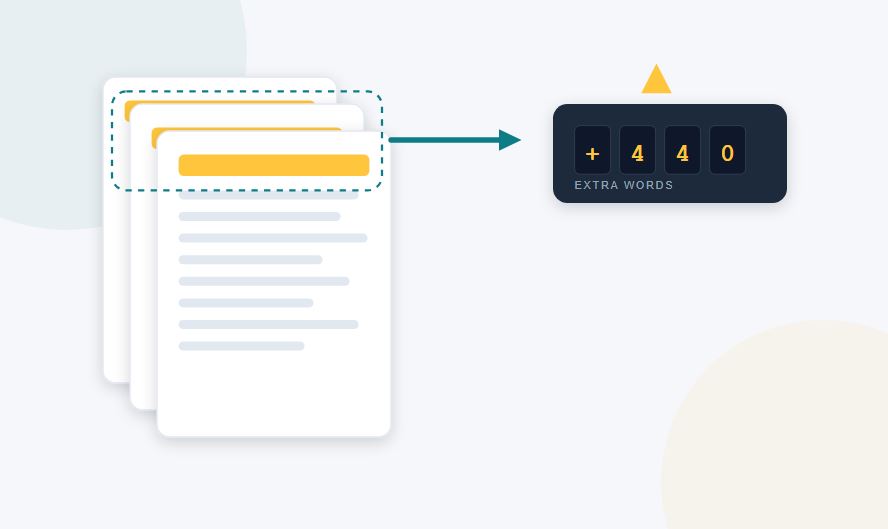
- Repeated headers and footers. If a header runs on every page, it gets copied along with the text — once per page. On a 40-page document, that can add hundreds of extra words to your count. For anything with a strict limit, paste the text into a plain text editor first and delete the repeated lines before you count.
- Multi-column layouts. Academic papers with two or three columns often paste out of order — for example, the whole left column of every page, then the whole right column. The word count still comes out accurate; the text just won’t read in order.
- Tables. Text inside PDF tables sometimes pastes as one long run-on string with no spaces. Most counters still get the word count right, but it’s worth a quick scan.
This method is best for quick checks and for anything confidential — nothing has to leave your computer if you paste into a local or privacy-respecting counter.
It won’t work on scanned PDFs, where the page is really just an image and no text can be selected.
Method 2: Use your PDF reader’s built-in count
Most people assume Adobe Acrobat Reader — the free version — shows a word count somewhere in the file properties. It doesn’t. You’ll see page count, file size, and creation date, but no word count. That feature is locked behind Acrobat Pro, which as of 2026 runs from around $19.99/month on an annual plan up to $29.99/month if you pay month to month.
A couple of free alternatives do show it:
- UPDF, a free PDF reader for Windows and Mac, displays a word count in its file properties panel.
- Browser extensions. Several free extensions add a word-count option when you right-click a PDF open in Chrome. They read the file on your machine, so nothing gets uploaded — but check what permissions an extension asks for before installing one. A word-count tool has no reason to need your browsing history.
If you already pay for Acrobat Pro, go to File → Properties → Description → Advanced. Word count shows up next to character and page count — but only if that data was saved when the PDF was created. Some PDFs don’t include it, and the field will be blank or show zero.
Method 3: Run OCR on scanned PDFs
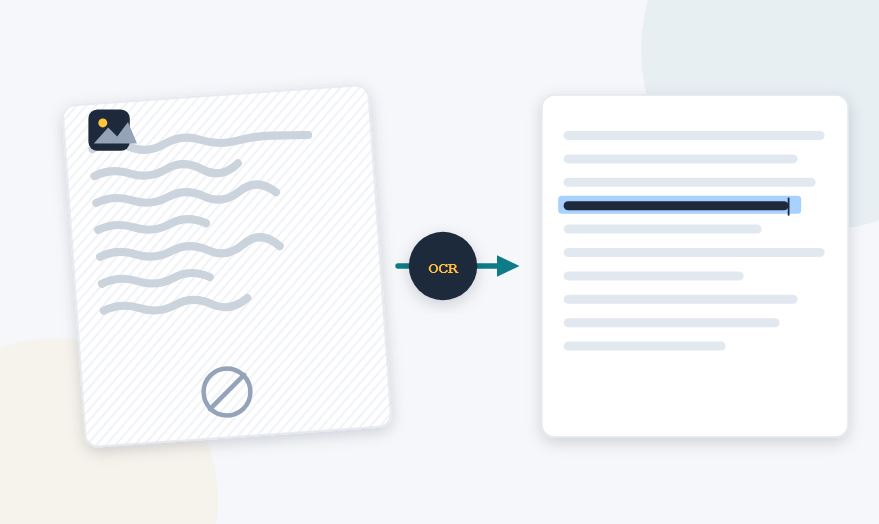
If you try to select text and nothing highlights — or the entire page selects as one block — you have a scanned PDF. It’s really a photo of a page saved as a PDF. No copy-paste method will work until the text is converted from image to text. That process is called OCR (optical character recognition).
OCR looks at the shapes on the page, matches them to letters, and rebuilds the words as real, selectable text. On a clean, high-resolution scan of a standard printed font, modern OCR is very accurate. Accuracy drops on handwriting, low-quality scans, or unusual fonts.
Free ways to run OCR:
- Google Docs. Upload the scanned PDF to Google Drive, right-click it, and choose Open with → Google Docs. Google runs OCR automatically and gives you an editable document, usually within 30 seconds. Then go to Tools → Word Count (or press Ctrl+Shift+C) to see the total.
- Adobe’s free online converter, at acrobat.adobe.com, converts PDFs to Word and includes OCR. It allows a limited number of free conversions before asking you to subscribe. Once you have the Word file, open it in Word or Google Docs for the count.
- Dedicated OCR sites, like OnlineOCR.net or OCR.space, offer free OCR with a daily limit. Upload the PDF, download the text, and paste it into a word counter.
One caution: if the document is sensitive — a contract, medical record, or financial statement — think twice before uploading it to a free online OCR tool. You don’t know how long they keep your file or who can access it. For sensitive documents, use an offline tool like Tesseract (free, open-source, runs from the command line) or the desktop version of Google Docs, so the file never leaves your machine.
Which method fits your situation
| Situation | Best method | Why |
|---|---|---|
| Single-page document | Copy-paste into a word counter | Fastest option, under 30 seconds |
| Long document with a strict word limit | Copy-paste, then remove repeated headers | Headers duplicated across pages can add hundreds of extra words |
| Multi-column academic paper | Copy-paste (ignore the scrambled order) | The count stays accurate even if the reading order doesn’t |
| Scanned document | Google Docs OCR | Only OCR can read text out of an image |
| Confidential document | Copy-paste, using a tool that doesn’t upload your file | Keeps the content off someone else’s server |
| Reviewing PDFs daily | A browser extension | One click, no switching tabs |
| Many files at once | The command-line tool pdftotext, piped to wc | Scriptable, handles a whole folder in seconds |
A couple of things worth knowing
Long documents inflate easily. If your PDF runs 20+ pages with a repeating header, footer, or page number, that alone can add 5–10% to your total count. If you’re up against a hard limit, count a version with the headers stripped out, or just subtract the header’s word count times the number of pages.
Word count isn’t the right metric for every language. Translators are often paid by source word count, but for Chinese, Japanese, or Korean text, character count matters more than word count, since those languages don’t use spaces between words the same way English does. If you’re counting one of these, use a tool that shows both numbers.
Bottom line
There’s no single button for this because PDFs were never built to be counted, only viewed. Once you pull the text out — by copying it, reading it with your PDF viewer, or running OCR on a scan — getting the number takes seconds. For most documents, copy-paste into a free counter like ChronoLedger is the quickest path, and it’ll also hand you reading time and a readability score along the way.
Related posts: